Friday, 4 October 2019

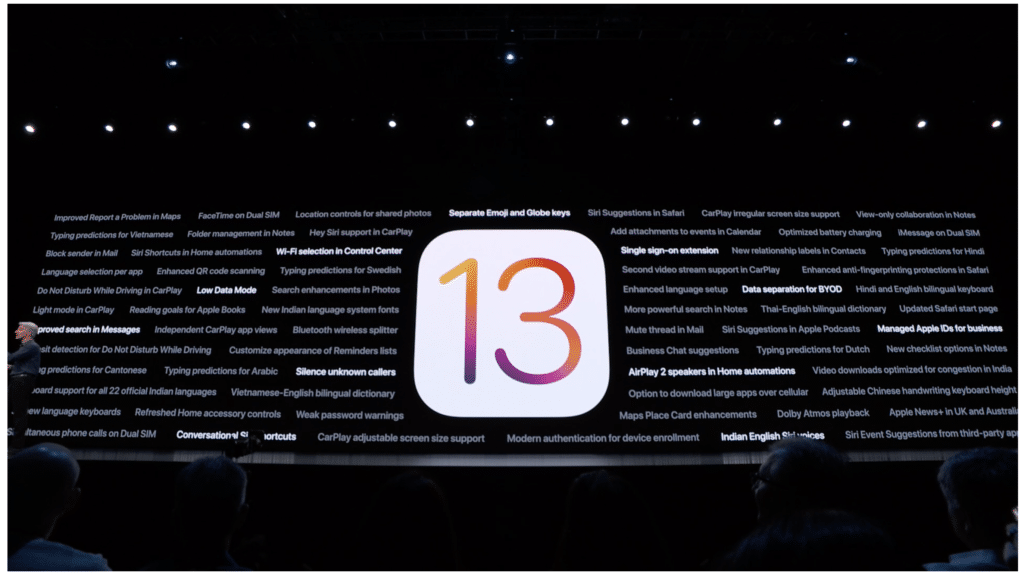
Methods to Lock Photos on iPhone Easily (iOS 13 Supported)


How to Lock Photos on iPhone without App

iOS 8 and later versions have built-in function that allows iOS users to lock their photos. While this function hides photos from Years, Collections, and Moments, the images are still visible in Albums.

Follow these instructions to lock photos on iPhone iOS 13 without app:


Open Photos app on your iPhone and find the photo that you wish to hide and open it.


Use the Share button and then find and choose the Hide option.


Tap the Hide Photo option to confirm your action. The photo will be placed in the album named ‘Hidden’.


App to Lock Photos on iPhone

Following are some popular apps to lock photos on iPhone iOS 13:
Keepsafe

Keepsafe is one of the most popular apps available for iOS devices that allows you to lock photos on iPhone and keep them in a secure vault.

Here are some features of this app:


Supports both iPhone and iPad.


User-friendly interface.


You can use PIN code to access your locked content.


Backup your photos as well as create custom albums.


Full-screen as well as slideshow viewing for both photos and videos.


Keepsafe also has an integrated camera that allows you to capture photos directly from the app.


You can share your locked photos from Keepsafe for a limited time via Safe Send feature.


Lock Photos Photo Secret Vault

Lock Photos Photo Secret Vault is another app that allows you to lock and manage your private photos, videos, documents, notes, voice recordings, text messages, and other files conveniently.

Following are some features of this app:


Lock/hide a wide variety of media files including photos, videos, notes, voice recordings, etc.


Create folders and subfolders in the app and manage them according to your needs.


Manage your locked files via a number of options including search, rename, delete, copy, cut, etc.


Sort your locked files by name, date, type, size, etc.


You can handle multiple locked files at the same time.


The app supports viewing of many file formats including jpeg, tiff, bmp, jpg, mp4, move, mp3, wav, pdf, doc, html, etc.Also Read:10 URL to MP3 Converter


Also Read:Download Tumblr Videos and Audios in 2019


Pic Safe

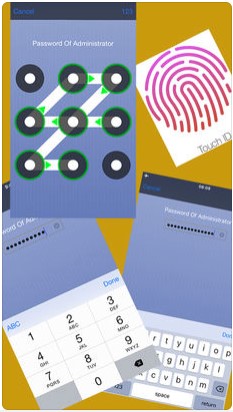
Pic Safe is one of the best vault apps available for iOS devices. It allows you to lock photos on iPhone using pattern or password. You can create multiple albums in the app as well as manage and share your locked photos and videos via email and message.

Following are some features of this app:


Import/export your private photos and videos conveniently from the Photo App of your iPhone.


Create albums within the app to keep your locked photos organized.


Share your locked photos via email and text message.


User-friendly and intuitive app interface, just like the official Photo App of iPhone.


Slideshow for enhanced photo viewing experience.


Play locked videos directly from the app.

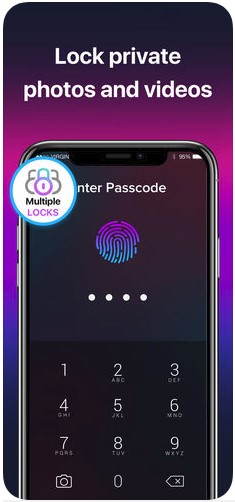
Lock Photos

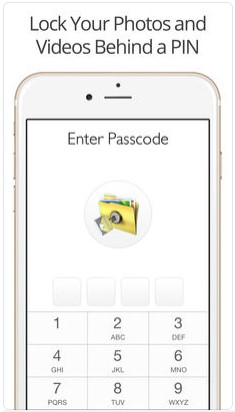
Lock Photos is another app that works as a reliable shield for your photos and videos. With this app, you can conveniently manage your private images and videos. Furthermore, the app also has a secret camera that allows you to capture photos secretly.

Following are some features of this app:


Lock your photos and videos in a private vault and protect them with password.


You can also use Touch ID to lock your private photos/videos.


Import photos directly from Camera Roll. The app also has a built-in private camera.


Fake Password feature will allow you to disguise your private gallery space to confuse the snoopers.


View photos and videos in the secret vault in landscape mode.

Monday, 29 July 2019

All Things About Huawei Safe Mode


Part 1: Why is My HUAWEI Phone in Safe Mode

You may wonder what is safe mode on Huawei phone? Just like it was described above, Huawei Safe Mode, just like any other Android phone would be a scenario when you boot your Huawei phone in Safe Mode. Here, any kind of technical issues relating to your phone can be solved especially if the problem is being caused by a third party app.

If you are thinking why is my phone in safe mode, the root problem may again be some installed third-party application causing this issue. These apps can sometimes cause your phone to get stuck in safe mode as well.《、

When your Huawei phone is in Safe Mode, you can see "Safe Mode" being displayed at the bottom. What you can do now is try operating your phone. If in case the problem in your phone still persists in safe mode, then a third party application is not causing any problems in your phone. But, if in case the problem suddenly seems to have been solved in safe mode then a third party application on your phone is definitely causing problems and needs to be removed immediately.
Part 2: How to Enter HUAWEI Safe Mode

There are two ways in which you can enter Safe Mode on your Huawei phone depending on the EMUI version.
Enter Safe Mode for Huawei devices which are EMUI 3.1 and above


Step 1: Turn off your Huawei phone completely.


Step 2: While turning on your phone, press and hold the "Volume Down" button until you see the lock screen.


Your phone would then boot in safe mode.
Enter Safe Mode for Huawei devices which are EMUI 3.1 and below


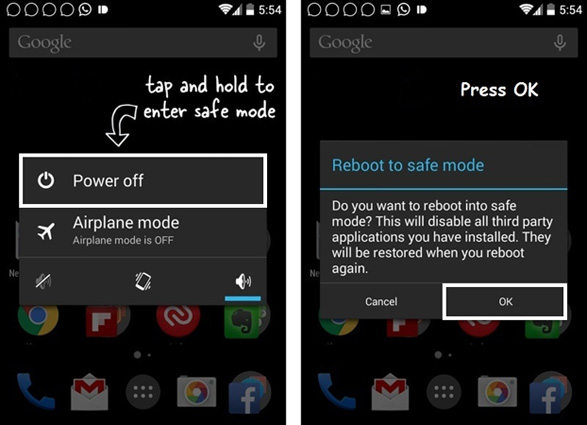
Step 1: initially press and hold the "Power" button.


Step 2: Next, press and hold the "Power Off" option on your phone.


You will then be prompted to enter into safe mode.
Part 3: Top 9 Tips on How to Remove Safe Mode on HUAWEI

Once you have clearly found out what the underlying problem is for the technical issue on your phone, you would need to know how to remove safe mode on Huawei. You can do this by following either of the following methods.


Tip 1: Try to Restart your HUAWEI Device


Tip 2: Try to Use the Notifications Panel


Tip 3: Try to Reinstall the Battery


Tip 4: Try to Wipe the Cache of your Device or an App


Tip 5: Try to Clear Some or All App Data


Tip 6: Try to Uninstall Apps That Don't Work


Tip 7: Try to Factory Reset your HUAWEI Device


Tip 8: Use the Volume and Power Buttons to Force Turn Off Safe Mode on HUAWEI


Tip 9: It Is Necessary to Check the Hardware if All Above Tips Are Not Working
Tip 1: Try to Restart your HUAWEI Device

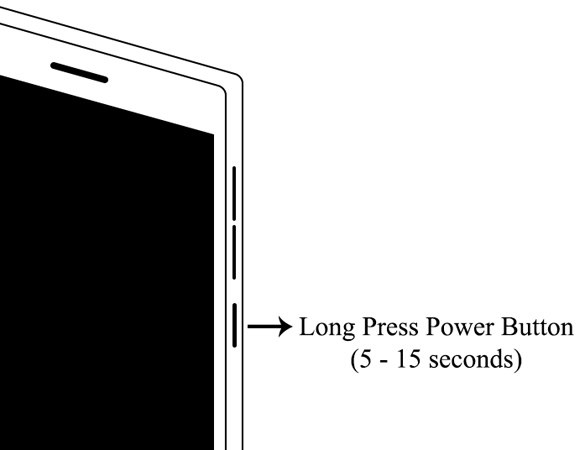
The first thing which you must try is you are left wondering how to turn off safe mode on Huawei is to try and reboot it. To do this, you just need to press and hold the "Power" button and wait till the screen goes blank, after this again press and hold the "Power" button and the phone will restart in normal mode and the Huawei safe mode off.Also Read:snapchat on mac

Also Read:voice changer app


Tip 2: Try to Use the Notifications Panel

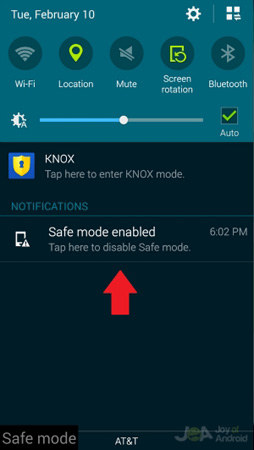
Another easy way to know how to take Huawei off safe mode is by using the Notifications Panel. Although this method will not work for most of the devices, there are a few models of Huawei phones on which this method works. When your phone is in the Safe Mode, from the Notifications Panel, tap on Disable Safe Mode and you will get Huawei safe mode turn off successfully.


Tip 3: Try to Reinstall the Battery

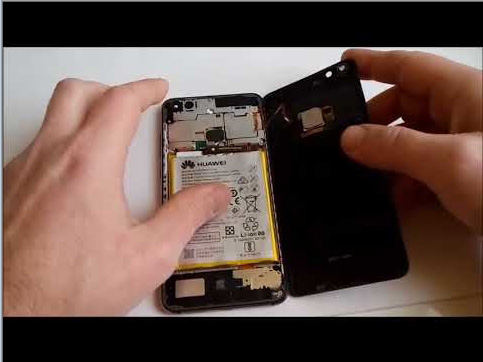
To exit from Huawei Y300 safe mode, this method can be tried out. For this method, turn off your phone using the steps described in "Tip 1" of this article and take out the back cover to remove the battery. Wait for a few minutes, put the battery back into its place and start your phone, you would have successfully turned off Huawei Ascend safe mode.


Tip 4: Try to Wipe the Cache of your Device or an App

Also Read:how to check who viewed my instagram profile

Also Read: Virtual Girlfriend Apps

Monday, 22 July 2019

Is iCl0udin Tool Reliable to Unlock iCloud Activation


Is iCl0udin Tool Reliable to Unlock iCloud Activation

iCl0udin has been a tool to unlock iCloud activation or bypass Apple ID, but with a unique way of operation. It offers an opportunity to iPhone users whose Apple ID is locked or could not access their record. The fact that iCl0udin works remotely and can quickly remove the Apple ID from your device makes it a good tool to use when you have a problem signing into your device.

Once your Apple ID is removed from your device, you can be sure of able to use some features you were previously restricted. And give security to your device.


Where to Download iCl0udin?

Now, if you want to download this tool, just go to its official page here: http://iCl0udin.org/iCl0udin-download-2019/. This page show you the instructions to download iCl0udin for your iPhone. You can see the red “Register & Download iCl0udin_Unlock.zip” button.
Can You Download the Real iCl0udin - My Authentic Experience:

I found that iCl0udin is not available online even on its official website and it seemed that there is no such kind of tool at all.

When I clicked the “Register & Download iCl0udin_Unlock.zip” button in its official download page, it just guided me to another site where it asked you fill in some questionnaire. I though I might be able to download iCl0udin after answering some questions. But I was wrong. When I answered a questionnaire, it appeared to be another one. I could not have access to the iCl0udin download. I finally figured out that I was just tracked.

It seems that iCl0udin and its official websites are just phishing site that offers nothings valuable.

If you lost data after you updated to a new iPhone, you can always use Gihosoft iPhone Data Recovery to get the data back from the old iPhone or backup.You may also like: iphonerecovery.com


Thursday, 18 July 2019

How iOS 13 Shocked the Industry with Smaller Apps


Part 1: What Devices are Compatible with iOS 13?

Apple’s 13th main operating system version, iOS 13 will be compatible with major iDevices available right now, including iPhones, iPads, and iPod Touch. However, devices released this year will spot the new iOS out of the box.

The following devices have been confirmed to receive this major update:


iPhone Xr


iPhone Xs


iPhone Xs Max


iPhone X


iPhone 8 / 8 Plus


iPhone 7 / 7 Plus


iPhone 6s / 6s Plus


iPhone 6 / 6 Plus


iPhone SE


iPod touch (7th generation)


Part 2: What does iOS 13 Apps Smaller Mean?

With the awesomeness of the iPhone, iPad, and other Apple mobile devices, it is easy to overlook certain factors and download/purchase as many apps as possible to bring out the rich experience of the devices. However, these applications usually take up useful space on the iDevices. Thankfully, Apple’s new iOS 13 has an answer to this challenge with iOS 13 apps smaller.

With the awesomeness of the iPhone, iPad, and other Apple mobile devices, it is easy to overlook certain factors and download/purchase as many apps as possible to bring out the rich experience of the devices. However, these applications usually take up useful space on the iDevices. Thankfully, Apple’s new iOS 13 has an answer to this challenge with iOS 13 apps smaller.

This particular feature is probably more essential than most other specs, in that it speeds up your iPad, iPhone, and iPod Touch saves you mobile data used for downloading and updating apps, reduces heating, saves you quite some battery juice.
Part 3: What are the other Performance-enhanced Features in iOS 13?

iOS 13 is truly a superb operating system update. Not only are iOS 13 apps smaller, but the update also comes with other amazing performance-enabled features.

First, the apps might be smaller and still have large download sizes for updates, but this isn’t the case for the new iOS. iOS 13 apps smaller not only by their download sizes, but the updates will also reduce in size by 60%.


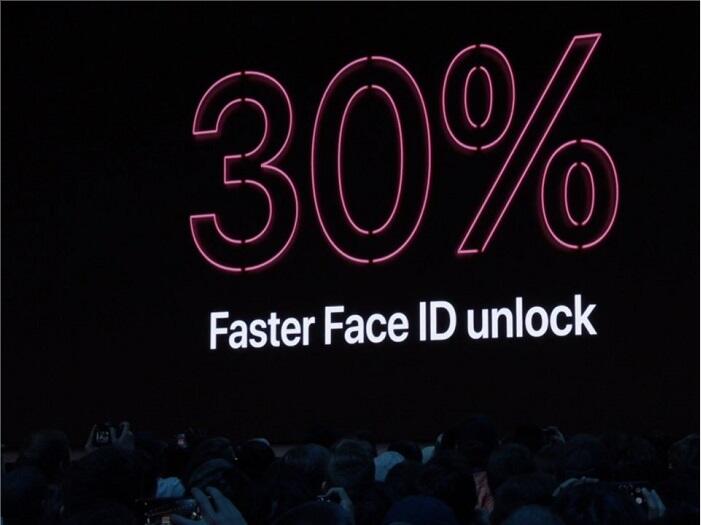
The iOS 13 apps smaller will also reduce the annoying lag you get when using Face ID unlocking, making the feature smarter and more fluid. The tech giants say that the iOS 13 apps smaller will lead to 30% faster Face ID unlocking. Similar to the points as mentioned earlier, apps on an iPhone running iOS 13 will open twice as fast as apps on the same iPhone if it was on iOS12.


Check here to know about more iOS 13 features revealed by Apple.
Part 4: How will iOS 13 Make Your iPhone/iPad Faster?

iOS 13 will speed up new apps thanks to the iOS 13 apps smaller and many other features, for which I have touched on a few under the previous. Some of these features include the following:


apps will start up faster by 100% because iOS 13 apps are smaller in size by 50%


reduces the space used by apps


faster application downloads


smaller sizes for application updates


speeds up Face ID unlocking by 30%


Bonus: iOS 13 Apps Optimizer: Save Space + Speed Up

Sponsor ads:

Gihosoft RePicvid Free Photo Recovery Software provides a free photo recovery software for windows to help users recover the deleted or lost photo for free.

If you lost data after you updated to a new iPhone, you can always use Gihosoft iPhone Data Recovery to get the data back from the old iPhone or backup.You may also like: iphonerecovery.com

Friday, 12 July 2019

How to Jailbreak iOS 12.2 – iOS 12 on iPhone and iPad Using Unc0ver Jailbreak


The @Pwn20wnd team might not have updated Unc0ver jailbreak with support for A12 devices like the iPhone XS and iPhone XR but it has been quick to update its jailbreaking tool to use the new Sock Puppet exploit. This allows the tool to jailbreak iPhones and iPads running iOS 12.2 while it was previously limited to iOS 12 – iOS 12.1.2.

While one can now jailbreak iOS 12.1.2 – iOS 12.2, the Sock Puppet exploit being used is a bit unstable in nature. The Unc0ver team will likely resolve these issues with continuous future updates. Since Apple is no longer signing iOS 12.2, you cannot downgrade back to it if your iPhone or iPad is running a newer build of iOS. In such a scenario, there’s not much you can do except wait and hope that an iOS 12.3 jailbreak is also released soon.
Compatible Devices

For now, you can jailbreak the following iPhones and iPad using Unc0ver jailbreak


iPhone 5s (iOS 12 – iOS 12.1.2)


iPhone 6 (iOS 12 – iOS 12.1.2)


iPhone 6 Plus (iOS 12 – iOS 12.1.2)


iPhone 6s


iPhone 6s Plus


iPhone 7


iPhone 7 Plus


iPhone SE


iPhone 8


iPhone 8 Plus


iPhone X


iPad Air


6th gen iPad
Pre-Requisites


Delete any iOS 12 OTA file downloaded on your iPhone/iPad. Delete it from Settings -> Storage and then proceed to reboot your device before attempting to jailbreak it.


To prevent future iOS 12 OTA updates from being downloaded on your device, you can install the tvOS 12 profile on it.


Make sure to create a backup of all important data on the device.


While you can jailbreak iOS 12.1.2 – iOS 12.2 using Uncover, the Sock Puppet exploit is a bit unreliable in nature. It also has some issues with A7-A8 devices like the iPhone 5s, iPhone for now.
Guide to Jailbreak iOS 12 – iOS 12.2 Using Unc0ver
Step 1: Download Latest Unc0ver beta

On your iPhone/iPad running iOS 12 – iOS 12.2, go to ignition.fun. You can continue using the website instead of using the Ignition app.

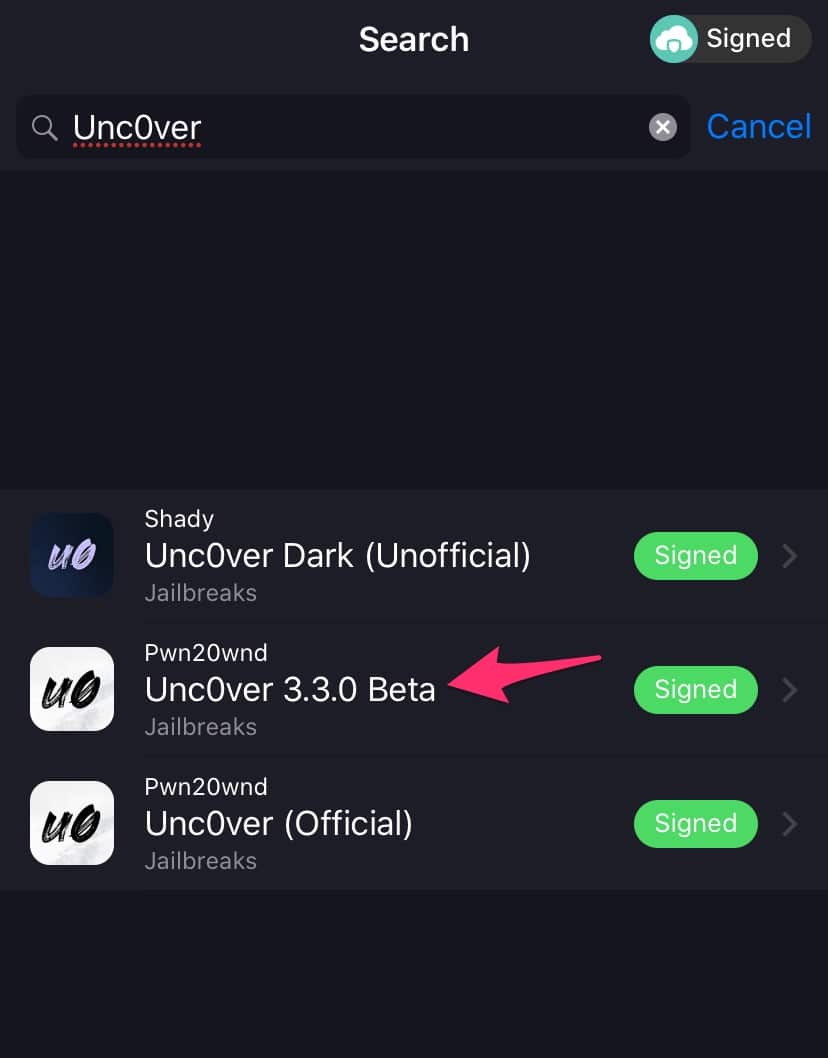
Using the search button at the bottom, find unc0ver. Make sure to download the beta version of Unc0ver since that’s the one which supports iOS 12 – iOS 12.2 jailbreaking right now. Tap the Get button to download the app followed by the Install button from the prompt you get. Depending on the speed of your internet connection, the installation process can take a few minutes.


Step 2: Trust Certificate

Head over to Settings-> General -> Device Management. Tap the developer name and trust the certificate. Without this, you won’t be able to launch the unc0ver jailbreak app on your iPhone.
Step 3: Jailbreak iOS 12 – iOS 12.2 Using unc0ver

Open Unc0ver, tap the Jailbreak button and wait for the app to do its job. Your iPhone or iPad will respring during the process after which you should see the Cydia icon on your home screen.

If the app gets stuck at the “Extracting Cydia…”step, you will need to reboot your iPhone/iPad and then try to jailbreak it again.


After successfully jailbreaking your iPhone or iPad on iOS 12 – iOS 12.2 with unc0ver jailbreak, check out an exhaustive list of iOS 12 – iOS 12.1.2 compatible jailbreak tweaks to customize your iPhone.

Remember that you might face some stability issues if you have jailbroken your iPhone/iPad running iOS 12.1.3 – iOS 12.2. The Unc0ver team will hopefully fix them with future updates.Sponsor ads:

Gihosoft RePicvid Free Photo Recovery Software provides a free photo recovery software for windows to help users recover the deleted or lost photo for free.

If you lost data after you updated to a new iPhone, you can always use Gihosoft iPhone Data Recovery to get the data back from the old iPhone or backup.You may also like: iphonerecovery.com


Thursday, 4 July 2019

Download iOS 13 and iPadOS 13 Beta 3 [Update: Public Beta Out]


Apple today released the third developer beta of iOS 13 and iPadOS 13.

Update: iOS 13 beta 3 is not available for iPhone 7 and iPhone 7 Plus.

The update will be available as OTA for all developers running beta 2 of iOS 13 or iPadOS 13 on their iPhone or iPad.

Additionally, the company has also released the third developer beta of macOS Catalina.

The latest developer beta from Apple should contain a number of bug fixes and stability improvements. There are also going to be some minor changes and tweaks and we will report about them as they are discovered.

With the third developer beta released, it is likely that we will see Apple release the second public beta of these operating systems for public beta testers later this week as well.

The final release of iOS 13 and iPadOS 13 are expected to drop in September around a week before the 2019 íPhones launch.
Download iOS 13 and iPadOS 13 Beta 3

If you are already running iOS 13 Developer Beta 2 on your iPhone, you just need to go to Settings -> General -> Software Update and download the beta 3 OTA.

The same steps are also applicable for downloading iPadOS 13 Beta 3.

Read: Install iOS 13 or iPadOS 13 Public Beta on iPhone and iPad
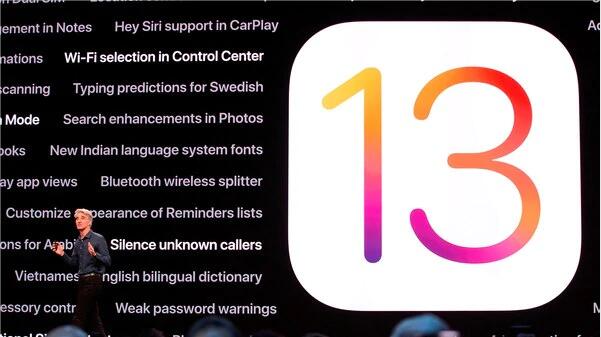
iOS 13 Features

1. Dark Mode

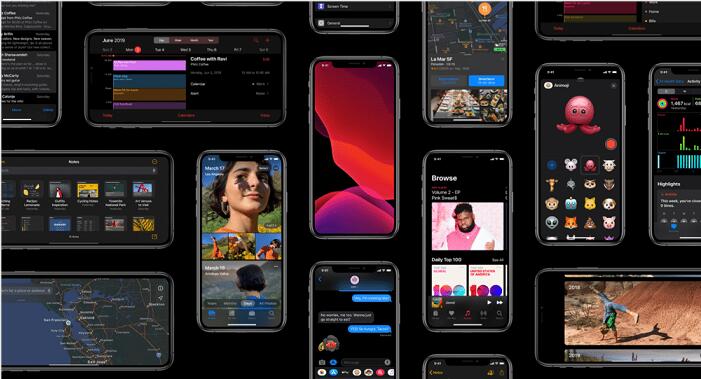
The biggest feature of iOS 13 is the new Dark Mode. This is truly system-wide. It stretches from the Lock screen to the widgets screen to Apple’s own apps. Even the keyboard gets a better version of the dark mode.Dark mode can be enabled easily from the Control Center.


2. 30% Faster Face ID Unlock

Something that will be noticeable instantly for iPhone X and above is that Face ID unlocked more than 30% faster.

3. Faster App Loading

Apple is continuing the focus on performance from iOS 12. The apps now launch twice as fast. And app downloads will be 50% smaller while app updates will be over 60% smaller.

4. Redesigned Volume HUD

The new Volume HUD appears in the top-left corner of the screen in an unintrusive manner. It first shows up as a full sized slide. But it immediately shrinks and becomes unintrusive.

5. iCloud Drive Folder Sharing in Files App

You can now share a whole iCloud Drive folder with other users using the Files app.


If you notice any major changes or improvements in iOS 13 or iPadOS 13, drop a comment and let us know about it.

Sponsor ads:

Gihosoft RePicvid Free Photo Recovery Software provides a free photo recovery software for windows to help users recover the deleted or lost photo for free.

If you lost data after you updated to a new iPhone, you can always use Gihosoft iPhone Data Recovery to get the data back from the old iPhone or backup.You may also like: iphonerecovery.com

Sunday, 2 June 2019

Several Apple’s iCloud Services Affected Due to Major Google Cloud Service Outage


If you’re facing issues with iMessage, iCloud Backup, Photos, etc. on your iPhone or iPad, then you’re not alone. Several of Apple’s iCloud services are currently facing issues due to a major outage with Google’s Cloud services.

According to Apple’s System Status page, 11 iCloud services are facing issues including Documents in the Cloud, iCloud Backup, iCloud Bookmarks & Tabs, iCloud Drive, iCloud Mail, iCloud Notes, iCloud Web Apps, iMessage, iWork for iCloud, Mail Drop, and Photos.

According to the System page, the issue is not widespread and affecting less than 1% of the users. The affected users are likely to “experience slower than normal performance with the service.”

Apple may be competing with Amazon, Google, and Microsoft, but ironically Apple relies on Amazon’s AWS services, Microsoft’s Azure and more recently Google’s Cloud services for its iCloud infrastructure.

The Google Cloud service outage is also affecting YouTube, Snapchat, Gmail, Nest, Discord, Google Analytics, and a number of other web services. A Google spokesperson told The Verge: “We are experiencing high levels of network congestion in the eastern USA, affecting multiple services in Google Cloud, GSuite and YouTube.”

If you’re facing issues with these services, then please let us know in the comments. We’ll let you know as soon as the issue has been resolved.

Sponsor ads:

Gihosoft RePicvid Free Photo Recovery Software provides a free photo recovery software for windows to help users recover the deleted or lost photo for free.

If you lost data after you updated to a new iPhone, you can always use Gihosoft iPhone Data Recovery to get the data back from the old iPhone or backup.You may also like: iphonerecovery.com

If you use android phones, please choose Gihosoft Android Data Recovery.With Gihosoft Android Data Recovery, no longer afraid of data loss!

iPhone Manager:Get the ultimate Gihosoft iPhone Manager. Free download for PC/Mac.

Easily Transfer/Move OS to Another Hard Drive in Windows 10/11 2023

  Easily Transfer/Move OS to Another Hard Drive in Windows 10/11 2023 Here's how you can easily transfer or move your OS to another hard...