Saturday, 16 June 2018

How to change the screen notification settings Lock on iPhone and iPad on iOS 12


How to change the screen notification settings Lock on iPhone and iPad on iOS 12


# 1. Call Notification Center on your iOS device.


Step # 2. Now, Swipe to the left on an alert and press "Manage".
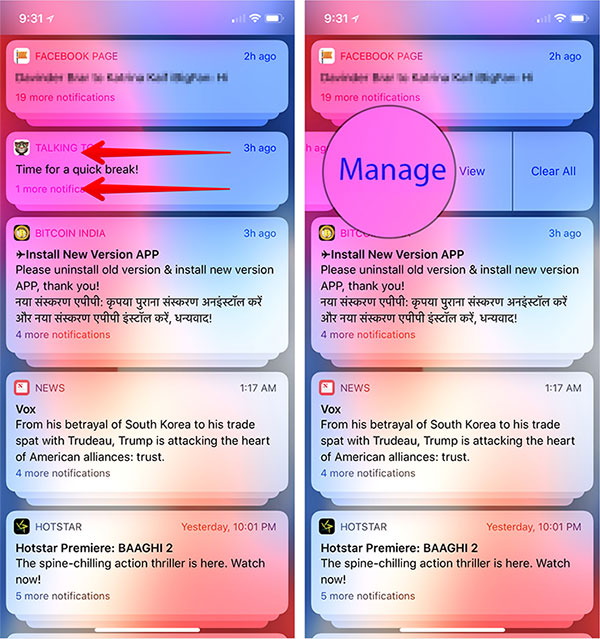


Alternatively, you can press and hold an alert → press ellipses (•••)



Step # 3. Then a menu will appear on the screen.


Now you have two options:


Deliver quietly: It will pass the alerts from the lock screen and directly go to the notification center. In addition, you will not hear any sound or vibration. But the badge of the application will continue to display Sponsor ads:
Jihosoft  iPhone Data Recovery
Free iPhone Data Recovery Software for Windows/Mac
Recover up to 12+ types of files, including contacts, SMS, photos, WhatsApp, Viber, notes, etc.
Restore lost data from iOS devices directly or from iTunes and iCloud backup
Recover iPhone data lost due to iOS upgrade/jailbreak, accidental deletion, device lost or broken
Support all the latest iPhone, iPad and iPod Touch.
Tips:
Gihosoft iPhone Data Recovery Free


Disable: It allows you to completely disable the notifications of the application.


Hint: Anytime you want the alert to arrive on LS in its own right, go to the notification of the application and slide your finger on it. Then tap "Manage" and select "Deliver Prominently".


Change Notification Settings


Gihosoft iPhone Data Recovery is a professional iPhone Data Recovery software to get back all your lost text message, photo, video, call history, note, contact and more from iPhone/iPad/iPod Touch. It offers a full solution to recover your lost data in different tough situations. Besides recovering data directly from iPhone, iPad and iPod touch, it also allows you to recover data from iCloud and iTunes backup files.

Thursday, 14 June 2018

iOS 12 Will Make It More Difficult For The Police To Break Into Your iPhone

Apple unveiled iOS 12 at WWDC 2018 earlier this month, talking about a lot of the new features and performance improvements. But, it seems like there’s also a new important security feature it didn’t talk about and that is soon going to put an end to the ‘GreyKey’ tool that law enforcement uses to break into locked or encrypted iPhones.


The GreyKey tool is known to use an undisclosed technique to override the default device encryption. Ever since this handy tool came into existence, the FBI hasn’t bugged Apple to help them break into an iPhone. They’ve been merrily collecting evidence by breaking through the encryption, but not for very long.


Apple is planning to regain control over the security of its devices and will be rolling out a new ‘USB Restricted Mode’ in iOS 12 that’ll make an iPhone useless and the GreyKey tool worthless, as reported by Reuters. This feature has been present in both iOS 11.4.1 and iOS developer beta builds, which confirms that it is currently under testing and should roll out to the public soon.


The ‘USB Restricted’ mode will limit data and communication access to the lightning port of an iPhone if the device hasn’t been unlocked in the past hour. You will only be able to use the lightning port for charging purposes once the one hour limit is reached. In an official statement, Apple told Reuters that,


We’re constantly strengthening the security protections in every Apple product to help customers defend against hackers, identity thieves and intrusions into their personal data. We have the greatest respect for law enforcement, and we don’t design our security improvements to frustrate their efforts to do their jobs.


While Apple denies that the restriction (or improvement, as they put it) isn’t intended to hinder law enforcement activities, it will again spark a debate between the company and the FBI. The law enforcement officials will have to rush to a crime scene to get access to the iPhone, use GreyKey, and unlock it.


This feature, however, is well-thought and shows that Apple is ready to go to any lengths to prevent other from impeding on your iPhone’s privacy. It may diminish the number of iPhone hijacking incidents as FBI’s hackers will need other complex methods to break into the phone. What are your thoughts on this feature?


Sponsor Ads:


Gihosoft iPhone Data Recovery is a professional iPhone Data Recovery software to get back all your lost text message, photo, video, call history, note, contact and more from iPhone/iPad/iPod Touch. It offers a full solution to recover your lost data in different tough situations. Besides recovering data directly from iPhone, iPad and iPod touch, it also allows you to recover data from iCloud and iTunes backup files.


Let us know in the comments below.

6 Most Expensive Apps for iPhone and iPad available on Appstore 2018

You may have seen and downloaded apps for iPhone or iPad that sales for $0.99, $2.99 or say $9.99 but what if I say there are app that’s worth over $999 on Appstore?


Yes, there are some most expensive apps on Appstore that costs more than $999. If you are curious to know the most expensive apps for iPhone and iPad then check out the following table.


You may not want this apps but it is always a good idea to know which and why these apps are worth thousands of dollars?


Here are 6 Most Expensive Apps for iPhone and iPad available on Appstore


App Name


Price


Appstore Link


CyberTuner


$999.99


View Details


iVIP Black


$999.99


View Details


app.Cash


$999.99


View Details


Ignition


$1399.99


View Details


Verituner


$599.99


View Details


Classic TC with WordPower


$299.99


View Details


Sponsor Ads:


Gihosoft iPhone Data Recovery is a professional iPhone Data Recovery software to get back all your lost text message, photo, video, call history, note, contact and more from iPhone/iPad/iPod Touch. It offers a full solution to recover your lost data in different tough situations. Besides recovering data directly from iPhone, iPad and iPod touch, it also allows you to recover data from iCloud and iTunes backup files.

Monday, 21 August 2017

Are you going to lose these exclusive filtered photos of the iPhone 8 components?

The Chinese microblogging site Weibo has posted on Saturday images of filtered iPhone 8 components, a few weeks of the expected launch of the phone in September. The images, later shared through Slashleaks, include the OLED display mounting system , internal components for the Lightning connector and flexible cables for transferring power to other components.
While the authenticity of the photos can not be relied upon, it is not uncommon for parts and components to seep out of the assembly plants as Apple increases production before the release of the iPhone . For example, last week we saw images of an alleged A11 processor and wireless components of the charging cradle, both of which should be released on Apple's redesigned OLED iPhone.Must Read:how to delete all icloud photos


If you lost data after you updated to a new iPhone, you can always use Gihosoft iPhone Data Recovery to get the data back from the old iPhone or backup.You may also like: iphonerecovery.com

If you use android phones, please choose Gihosoft Android Data Recovery.
Earlier this month, the images were shared on the network showing the manufacture of validation tests for the iPhone 8, while the videos were also shared for the purpose of showing an iPhone 8 production line in an unidentified factory, Presumably in China, although the veracity of these videos is still in question.
Apple is expected to announce "S" cycle upgrades to its current line of iPhone 7 phones next month, but with the potential for new glass bottoms and wireless charging in addition to the usual moderate internal improvements.
As for the new 5.8-inch iPhone, it could still have a different name , Apple is expected to start a virtually beveled edgeless phone with an OLED display, a glass top, camera lens, and a frame Of steel, everything for a thinner sensation and a price of more than 1000 dollars.
Based on the details of Apple's HomePod firmware, the device will have a notch at the top of the screen that will house the sensors and the camera, eliminating the traditional Home button in favor of a virtual one, with facial authentication . It will probably replace the Touch ID fingerprint recognition.
It is believed that the new iPhone will debut in black and silver colors, as well as a new copper color option, possibly called "Blushed Gold" . According to references from previous years, Apple is expected to announce the phones at an event that will be in the first two weeks of September.

Sunday, 20 August 2017

7 Great hidden features of iOS for iPhone and iPad

According to my experience iOS is the best mobile OS available in the market. The best part about the OS is the user-friendly behavior and easy to manage settings. Personally, I am using iOS for last 6 years and I fill Android has still a long way to reach to that level.

Must Read: Apple has downgraded iPhone 8 before the launch

As a normal scenario, we all know that there are many hidden features available in the iOS which you can find by exploring or by reading the tips and tricks about the same. In this article, we are going to talk about 7 hidden features of iOS which will help you get the maximum out of your iPhone and iPad.


Stay Logged Into TV Apps

The iOS 10.2 update includes a new TV app. In addition to offering a single place to see the TV shows and movies that you are currently watching it solves a major issue.

You can sign in to your TV provider here and then it will keep you signed into the individual apps that networks and premium providers use.

Must Read: iPhone 8 concept design which will blow your mind


To get started, go to Settings -> TV -> and sign into your provider. You will then see options to connect accounts to the TV app.

Quick Access to Apple Music Controls

Once you update to iOS 10.2 or higher you can quickly adjust your Apple Music playback settings.


Swipe up from the bottom in the Apple Music app and you can see the options to control Shuffle, Repair, and Up Next.

Use Split View in Safari on iPad

When you are browsing a web page in Safari on the iPad you can now open up two pages next to each other. Press and hold on a link and then choose Open in Split view to launch two web pages next to each other. You can use each page independently. It’s awesome for comparison shopping.

Must Read: 8 iPhone & iPad features that will be added with iOS 11

See Your Notifications Fast


When you pick up your iPhone, you can now see all your notifications without pushing a button. Raise to Wake is on by default, but you can turn it on in Settings -> Display& Brightness -> Raise to Wake if it isn’t already working. This allows you to quickly see your new notifications without pushing the home button or power button.

How to Change Flashlight Brightness

The iPhone flashlight on iOS 10 now supports 3D touch so that you can choose the brightness. Open the Control Center and then 3D Touch on the flashlight icon to choose the intensity of the light. It’s very handy for times when you just need a little light to find your Lightning cable and you don’t want to light up the bedroom.Must Read:how to make ipad faster
If you lost data after you updated to a new iPhone, you can always use Gihosoft iPhone Data Recovery to get the data back from the old iPhone or backup.You may also like: iphonerecovery.com
If you use android phones, please choose Gihosoft Android Data Recovery.

Find Related Photos Fast 


When you are looking at a photo in iOS 10 slides up to see related photos in the form of Moments and slide up more to Show Photos from this day. You can also Tap on Details to see this information and if saved the location of the photo.

Must Read: 11 tips to increase the iPhone and iPad Battery life

Go Back to Touch to Unlock


If you don’t like the new press to unlock option in iOS 10, you can go back to the way it was in iOS 9. This will take you back to rest to unlock and will unlock your iPhone as soon as you put your finger on the home button. Go to Settings -> General -> Accessibility -> Rest Finger to Open -> On. Here’s more on this change.

Wednesday, 16 August 2017

How to Download iOS 11.0 Beta 6 for Free (IPSW Direct Download Links & Over the Air Profile) ?

Today Apple has released beta 6 of iOS 11 to developers. This new version brings lots of new features, such as a redesigned control centre, smarter Siri, lots of productivity improvements for the iPad, and much more. Anyone can download and install it right now by either downloading the IPSW file, or the OTA profile below.Must Read:how to restore contacts on iPhone without backup
iPhone Download Links: 
iPad Download Links: 
iPod touch Download Links:
Over The Air Profile:
For instructions on how to install iOS 11 beta on your iPhone, iPod touch or iPad without having a paid developer account or UDID activation click here.Sponsor ads:
Gihosoft iPhone Data Recovery Free
Free iPhone Data Recovery Software for Windows/Mac
Recover up to 12+ types of files, including contacts, SMS, photos, WhatsApp, Viber, notes, etc.
Restore lost data from iOS devices directly or from iTunes and iCloud backup
Recover iPhone data lost due to iOS upgrade/jailbreak, accidental deletion, device lost or broken
Support all the latest iPhone, iPad and iPod Touch
Both Free and Pro version.
If you lost data after you updated to a new iPhone, you can always use Gihosoft iPhone Data Recovery to get the data back from the old iPhone or backup.You may also like: iphonerecovery.com
If you use android phones, please choose Gihosoft Android Data Recovery.
With Gihosoft Android Data Recovery, no longer afraid of data loss!
Check out the iOS 11 section of the website for more information about iOS 11.

Friday, 11 August 2017

How to go to recovery mode when iPhone is turning on and off ?

Is your iPhone stuck in a boot logo and doesn’t turn on? Connecting your iPhone on iTunes doesn’t help out to get into recovery mode? Well here is a great trick to get into recovery mode on your older iPhone and iPhone 7 when Apple logo keep flashing and turn off the device suddenly.

Is your iPhone stuck in a boot logo and doesn’t turn on? Connecting your iPhone on iTunes doesn’t help out to get into recovery mode? Well here is a great trick to get into recovery mode on your older iPhone and iPhone 7 when Apple logo keep flashing and turn off the device suddenly.

There might be a condition when your iPhone won’t turn on because of the iOS malfunction. When you try to turn on your iPhone, it shows an Apple logo for couple of seconds and then turn off automatically. This is a minor case which can be fixed by restoring your iPhone using iTunes. But in this case connecting your iPhone on iTunes won’t put your iPhone on recovery mode. For that you need to use a simple trick.

How to Put your iPhone/iPad into recovery mode when Apple logo keep flashing on Boot screen

Step 1: Make sure your device is fully turned off Must Read:irefone
Must Read:how to put cd on iPhone


Step 2: Hold down the Home button

Step 3: When you are holding down the Home button on your iPhone/iPad, connect it to the power using a data cableMust Read:recover photos from locked iPhone
Must Read:iPhone is disabled connect to itunes bypass


Step 4: When it is in the recovery mode screen, release the home button and you are done Must Read:delete wechat account

Now you can connect your iPhone to the iTunes and restore it without any problem

However getting into the recovery mode on iPhone 7 and iPhone 7 Plus when Apple logo keeps on flashing might not be the same way as it is on previous model. It is because iPhone 7/Plus has a pressure sensitive Home Button integrated into it.Gihosoft Free iPhone Data Recovery is a professional iPhone Data Recovery software to get back all your lost text message, photo, video, call history, note, contact and more from iPhone/iPad/iPod Touch.

Here is How to Put iPhone 7 & iPhone 7 Plus when it is turning on and off

Step 1: Again the device must be fully turned off

Step 2: Hold the volume down button

Step 3: Connect it to the power source using a data cable

Step 4: Leave the volume down button when it is on recovery mode

After that you can easily restore your iPhone 7 and iPhone 7 Plus using iTunes.

Easily Transfer/Move OS to Another Hard Drive in Windows 10/11 2023

  Easily Transfer/Move OS to Another Hard Drive in Windows 10/11 2023 Here's how you can easily transfer or move your OS to another hard...